How to install LangMagic’s extension?
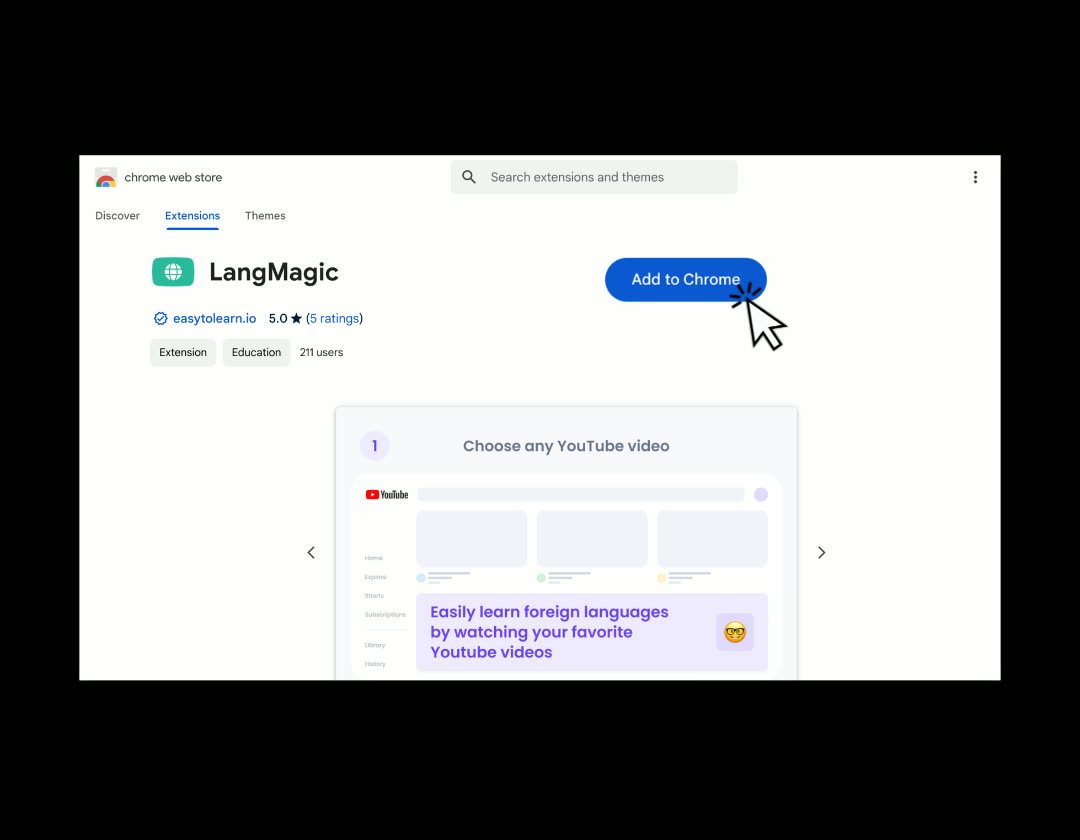
1) Click on the “Install for free” button on the langmagic.com website or follow our link in the Chrome Google Store.
2) Click on the «Add to Chrome» button
3) Extension successfully installed! LangMagic’s icon will appear in your list of browser extensions.
How to start using LangMagic’s Extension?
1) Once LangMagic’s extension is downloaded to your browser, you’ll be redirected to LangMagic’s main page.
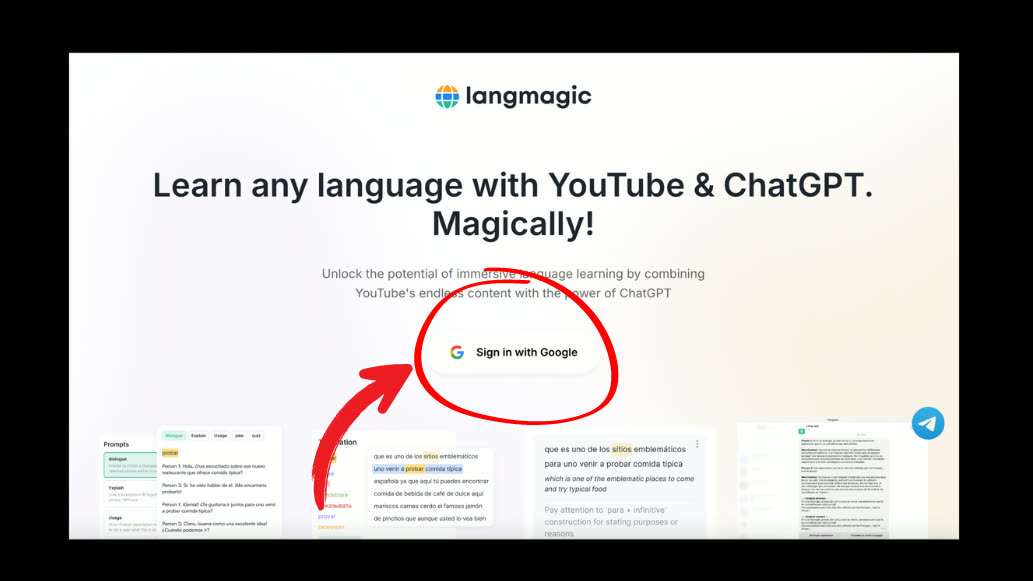
2) You will need to press the “Log in” button and log in with your Google account.
3) Yaay! Now, you are ready to use it. To check that the extension has been activated, go to YouTube. If the extension has been successfully added, you will see a small white icon next to the “Subtitles/Closed captions” icon.
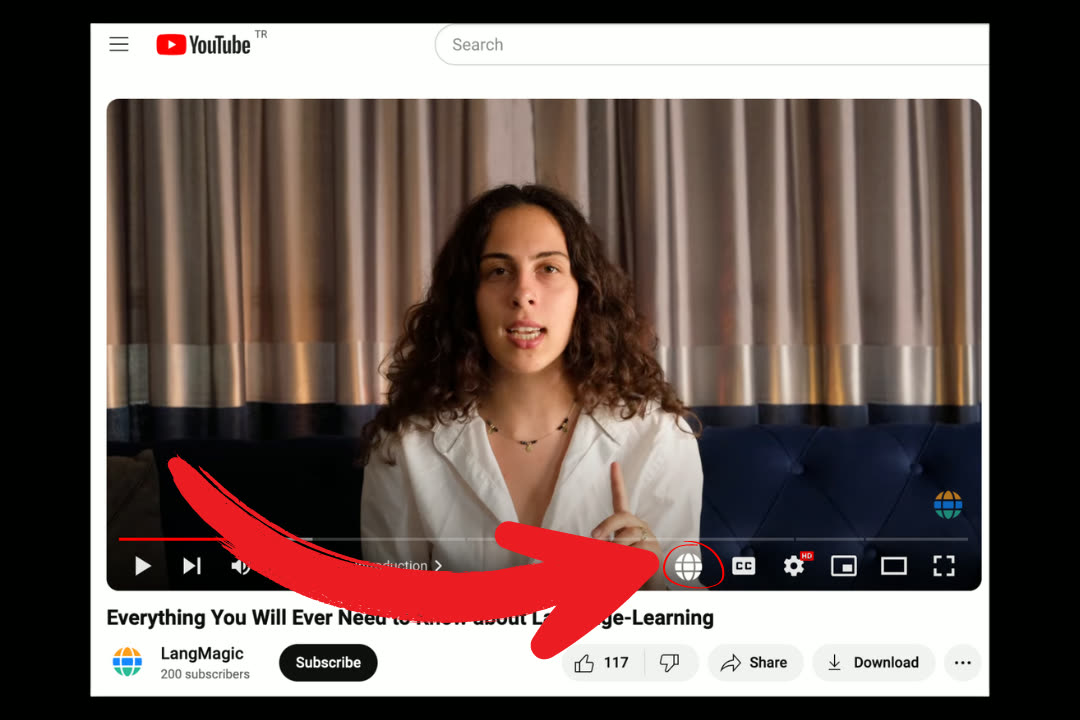
4) To add a video, you need to simply click on the icon. LangMagic will redirect you to choose the playlist location for saving the video.
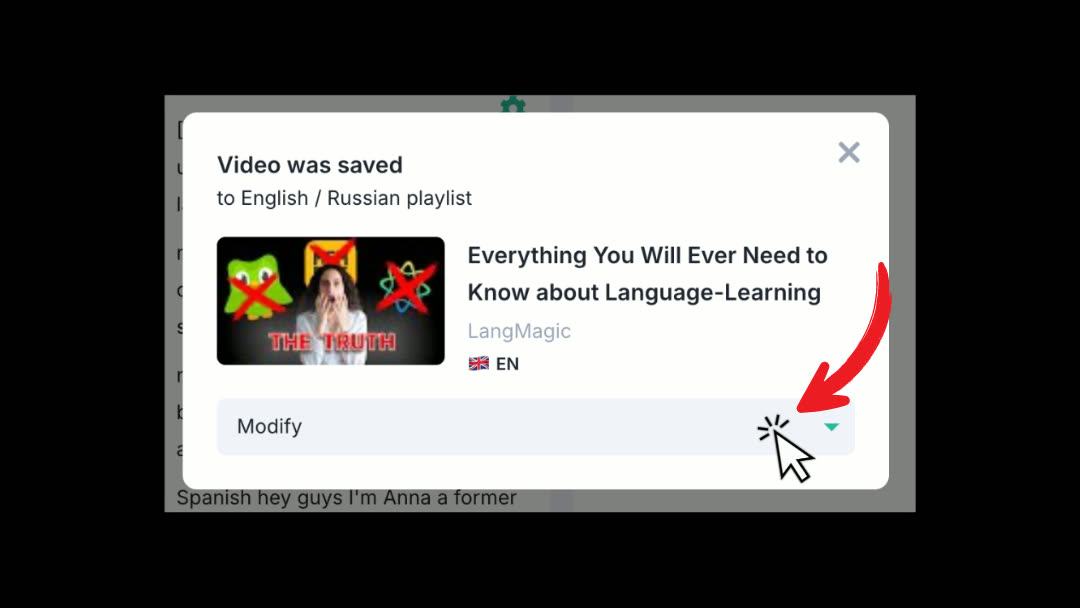
5) That’s it! You’re ready to use LangMagic’s extension!
What can the LangMagic’s extension do?
Add videos to playlists
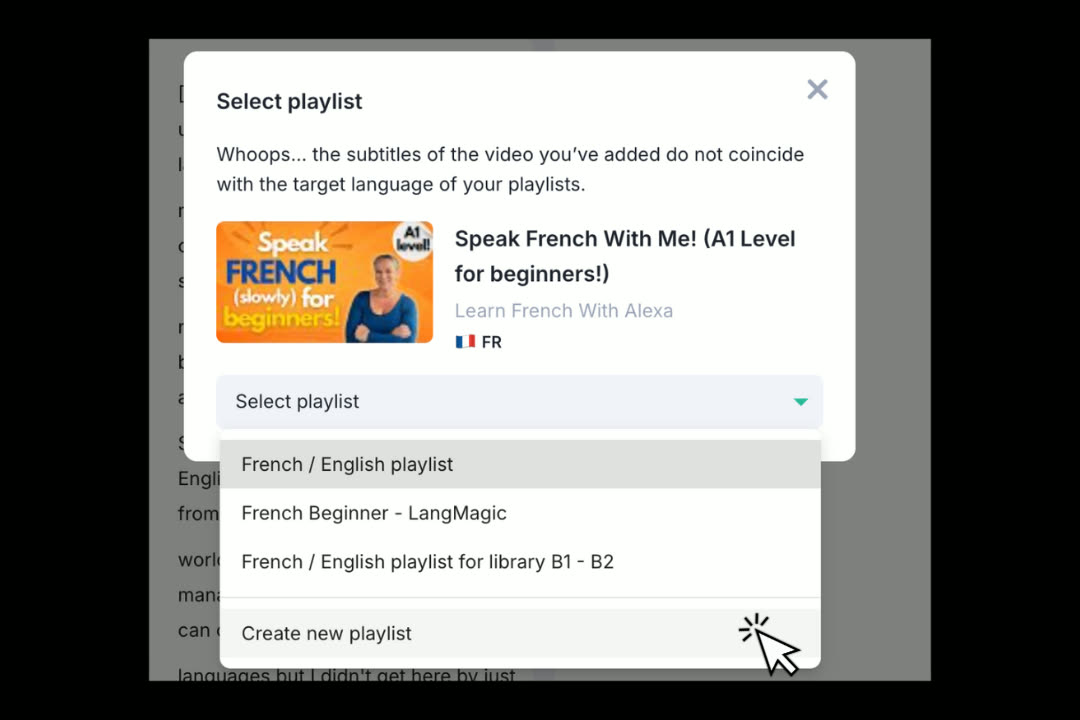
You can choose interesting videos with subtitles on YouTube and save them to playlists.
- When selecting a video inside the YouTube platform, click on the extension icon.
- In that newly opened window click “Open video” with the desired subtitles.
- You can change languages inside your personal account, using the “Select subtitles” button.
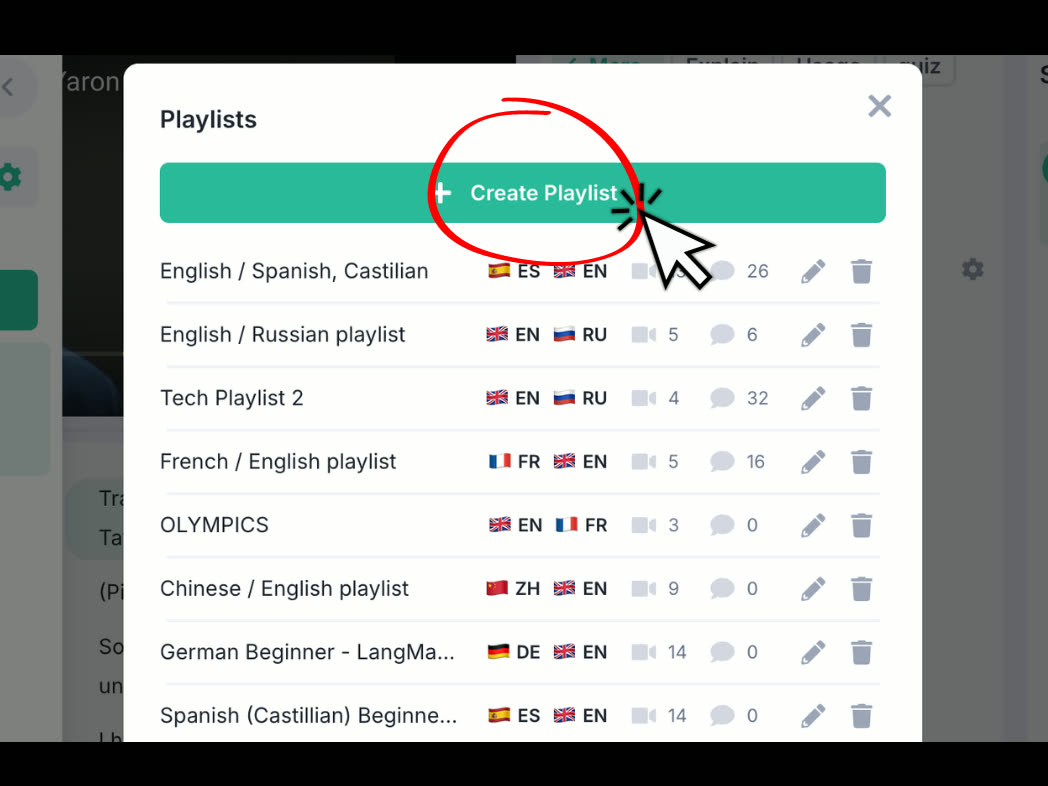
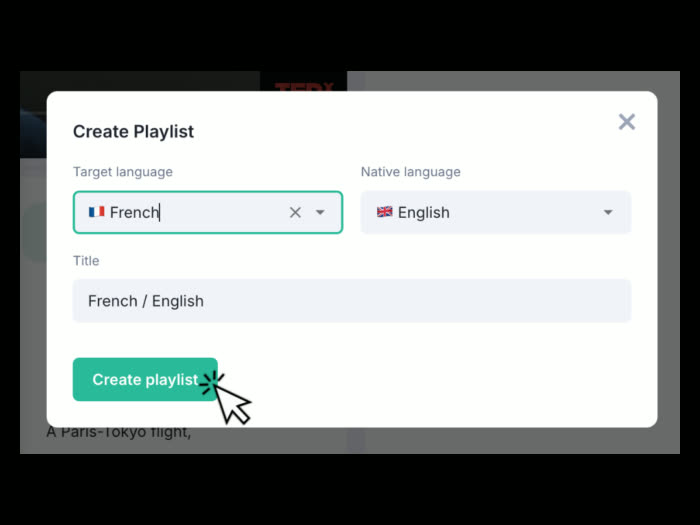
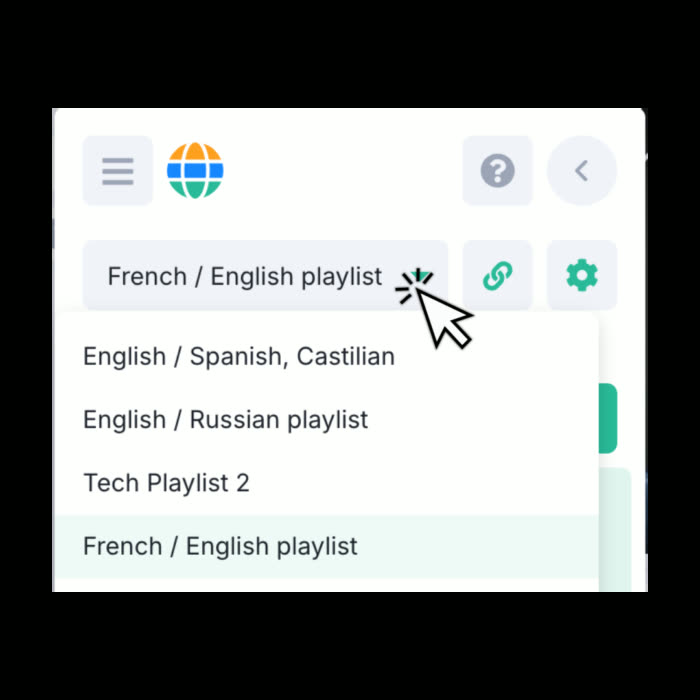
- You can create new playlists in your personal account at any time.
Video without subtitles that coincide with the “Target language” of a playlist will not be supported.
Translation of quotes and phrases
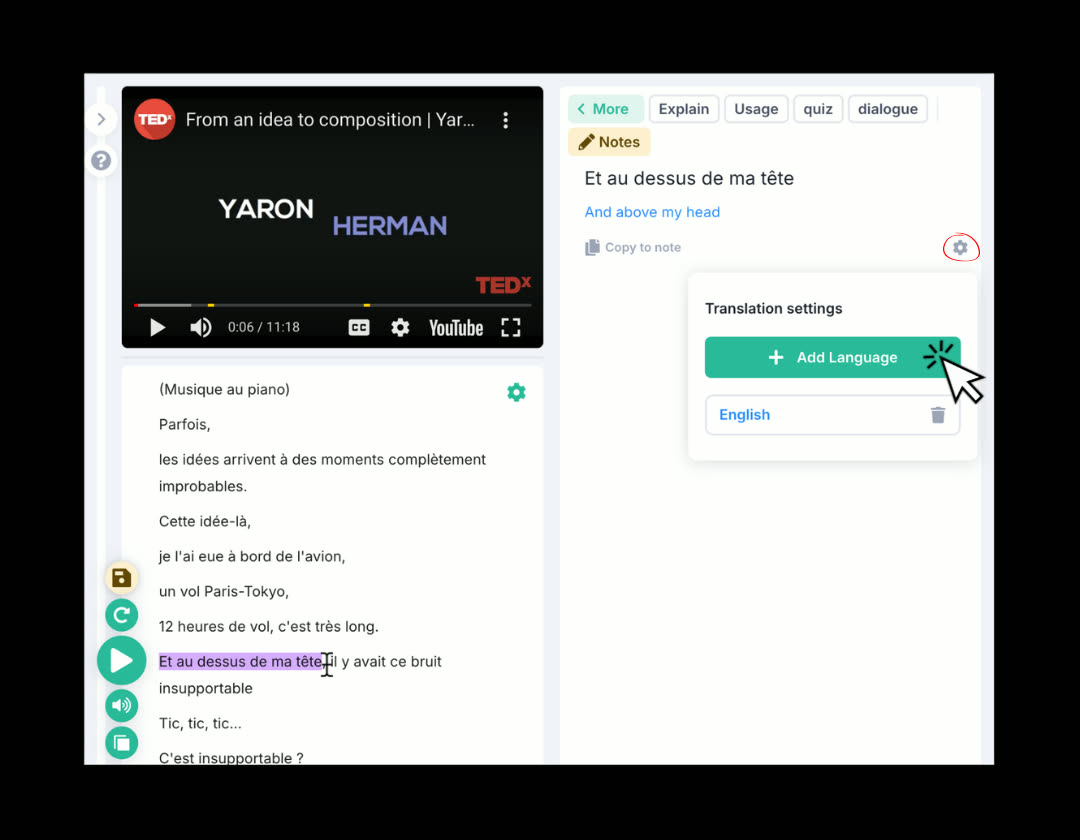
- To translate a word or the whole phrase, select it.
- On the right section, you’ll automatically see translation in your “Native language”. You can change or add langauges by pressing the “settings” icon, followed by “Add Language”.
- You can add up to 9 languages!
Saving phrases
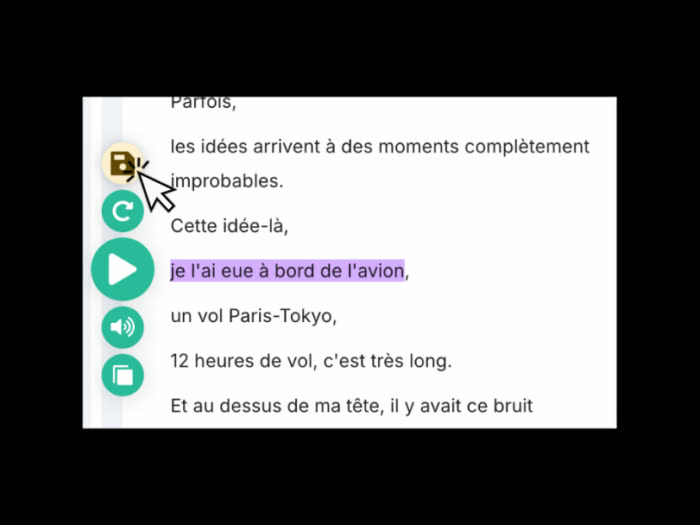
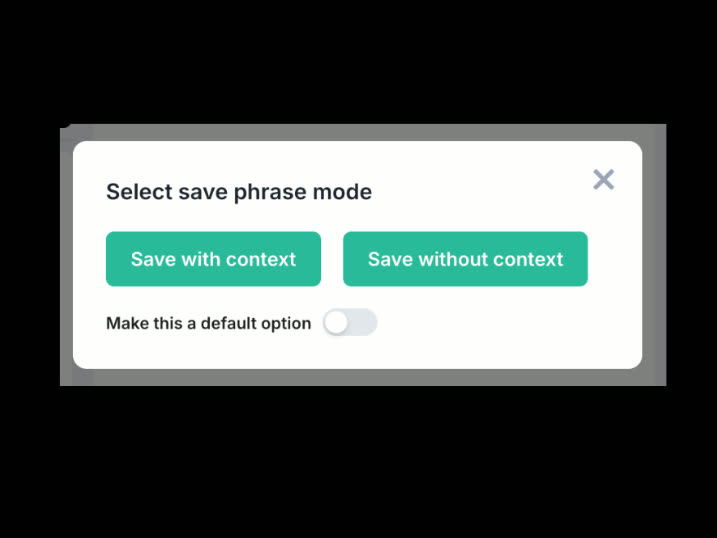
- You can highlight and save part of the phrase (or the entire phrase) while you’re watching a video in the subtitles section of the language being studied (at the bottom).
- In the window that appears, click the “Save selection” or “Save sentence” button.
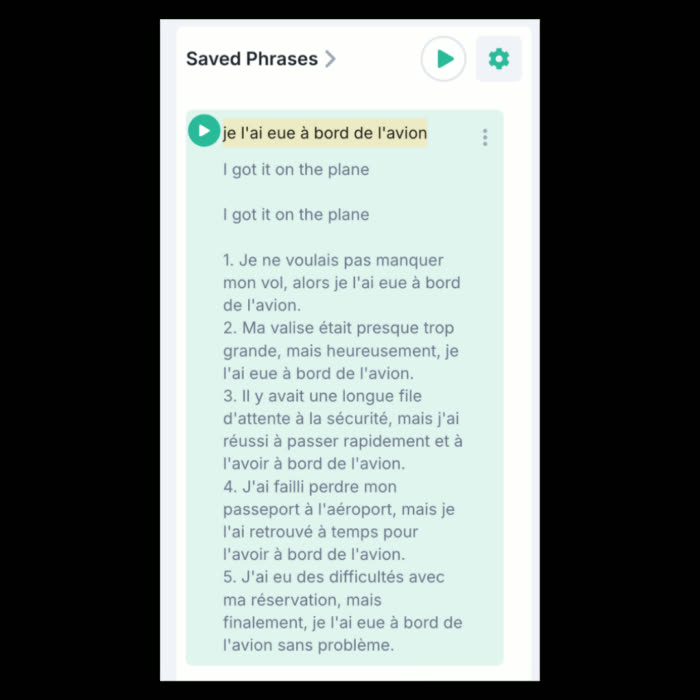
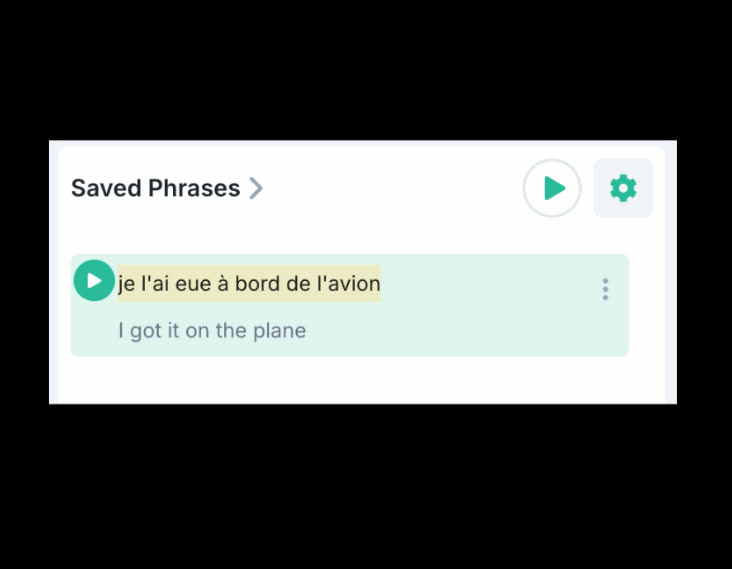
- The added phrase appears in the “Saved Phrases” section, in both phrase modes.
- In the “Saved Phrases” section: the highlighted part of the phrase will be highlighted in yellow.
Once added, the phrase can be played or deleted if necessary.
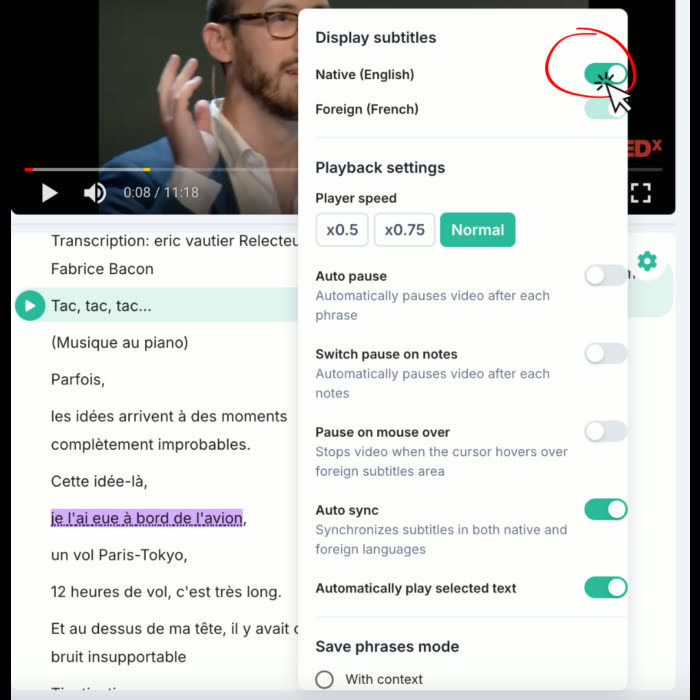
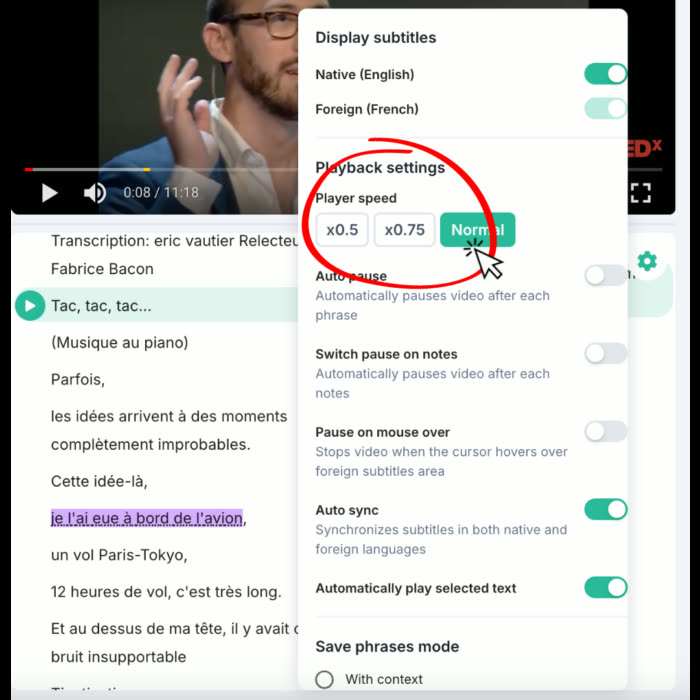
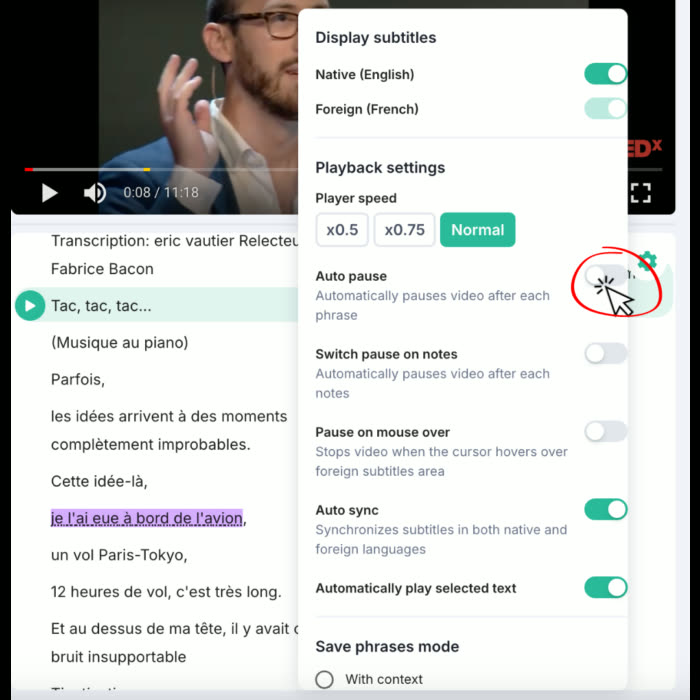
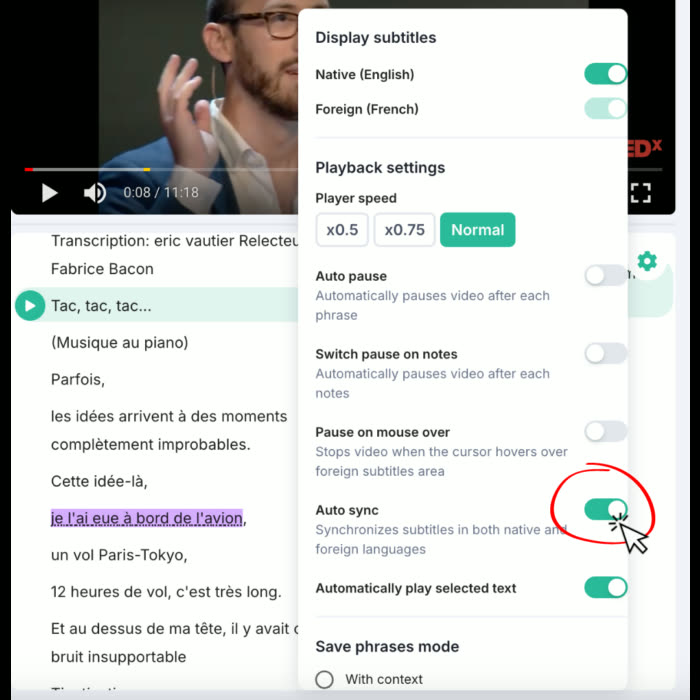
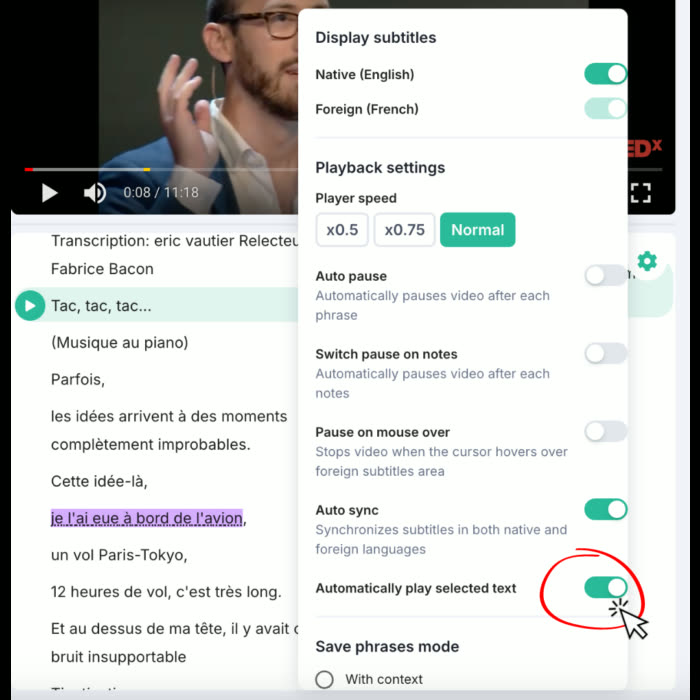
Subtitles Settings
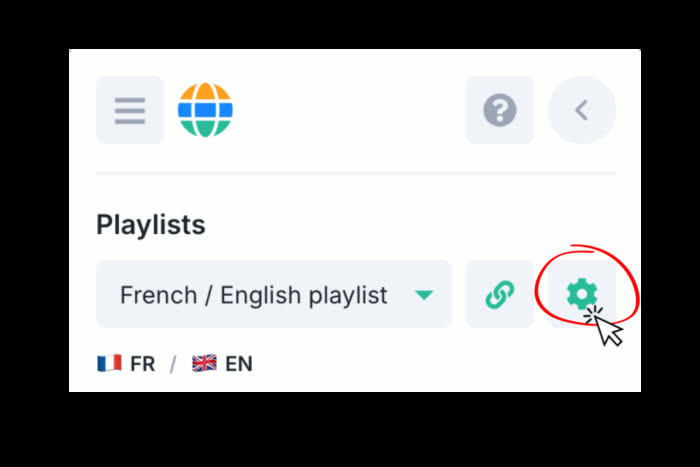
How to add a new playlist on LangMagic?
How to create annotations or notes on LangMagic?